
These instructions demonstrate how to change your email signature from a desktop or laptop computer.
Step 1: open settings
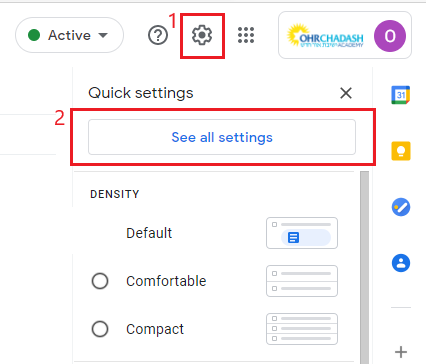
Click on the gear icon on the top right of Gmail, and then click on "See all settings." From the General tab, scroll down to the "Signature" section.
Step 2: select which signature to edit
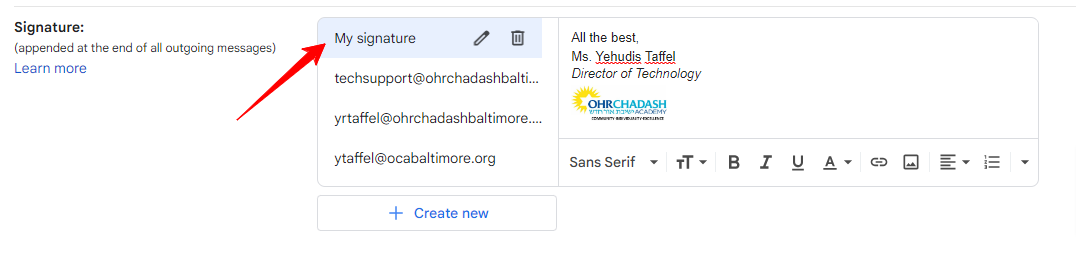
Click on the signature you would like to change.
Step 3: edit text
In the text editor on the right, change the text, as desired.
Please note: your name and title should be the "Normal" text size, and the mailing address and phone number should be the "Small" font size. Your title should also be italicized. The default font should be used for all.
Step 4: insert image
If you need to add an image, follow these steps to manually insert it.
- Create a blank line between your title and the school's address. Leave your cursor in that blank line.
- Click on the "Insert image" icon
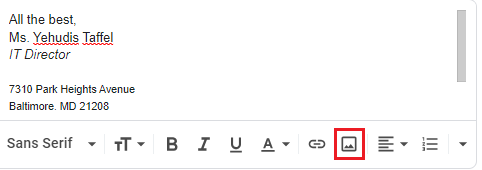
- Click on "Upload". Navigate to the location on your computer where the file is saved.
- Select the file and then click "Open".
- The file will insert in the original size by default. Click on the image and then select "Small" from the sizing menu that pops up.
Step 5: save
Scroll all the way down to the bottom and click on "Save Changes."
That's it! You're done!